







 Shopify Development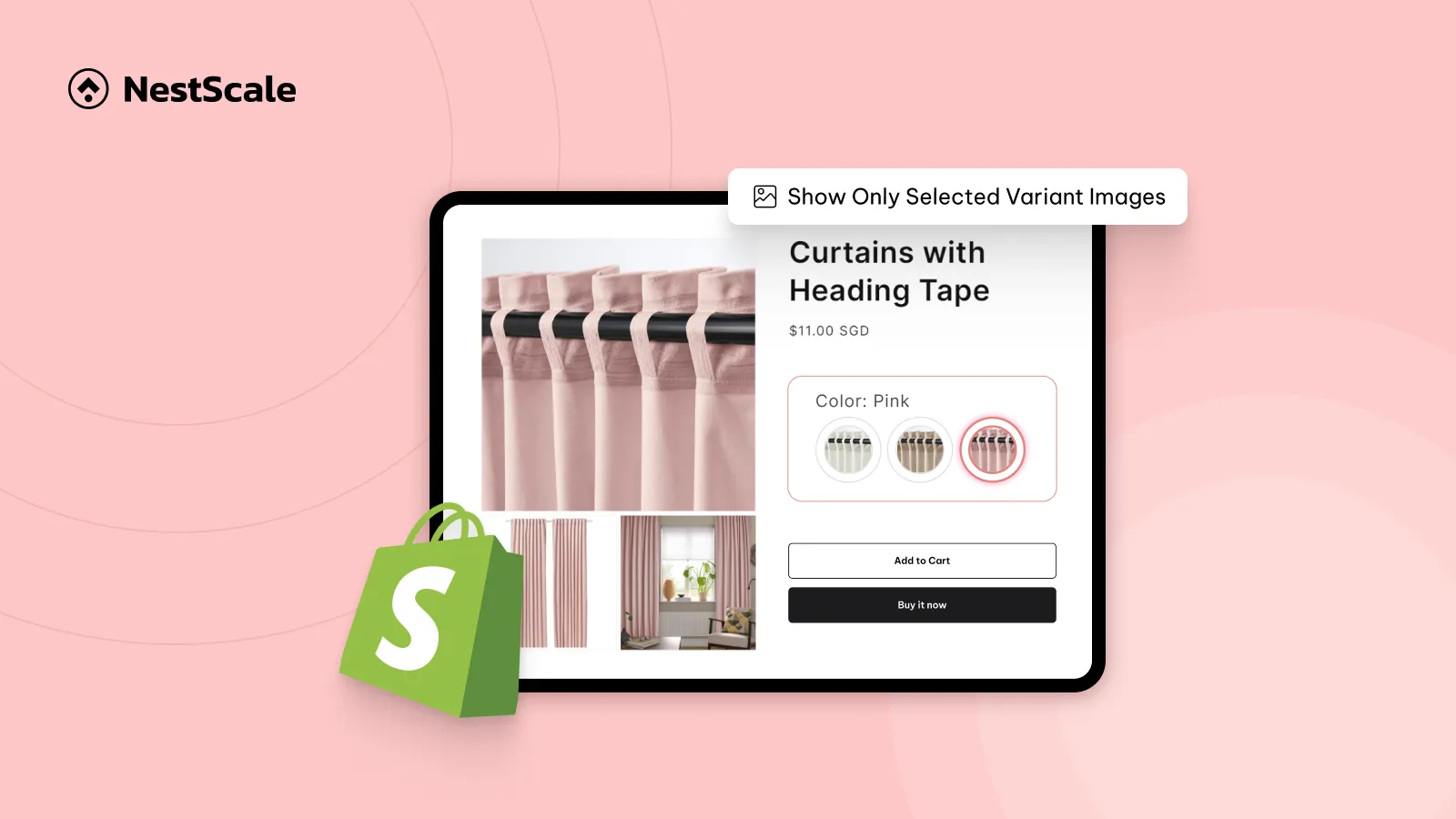
When selling products with multiple variants like colors, sizes, or materials, using a feature like show only selected variant images can make a big difference in your store’s usability. Instead of overwhelming shoppers with all product photos at once, you can focus their attention on the variant they’re interested in.
If you’re using the Shopify Dawn theme, the good news is that you can easily enable this feature without touching a single line of code.
In this guide, we’ll show you exactly how to show only selected variant images in Shopify Dawn theme by using NS Color Swatch Variant Images app, step-by-step, so your product pages look cleaner, more professional, and more conversion-friendly.
Step 1: Install and Enable NS Color Swatch Variant Images
Firstly, let’s get the app installed and ready.
1. Go to the Shopify App Store and search for NS Color Swatch Variant Images.
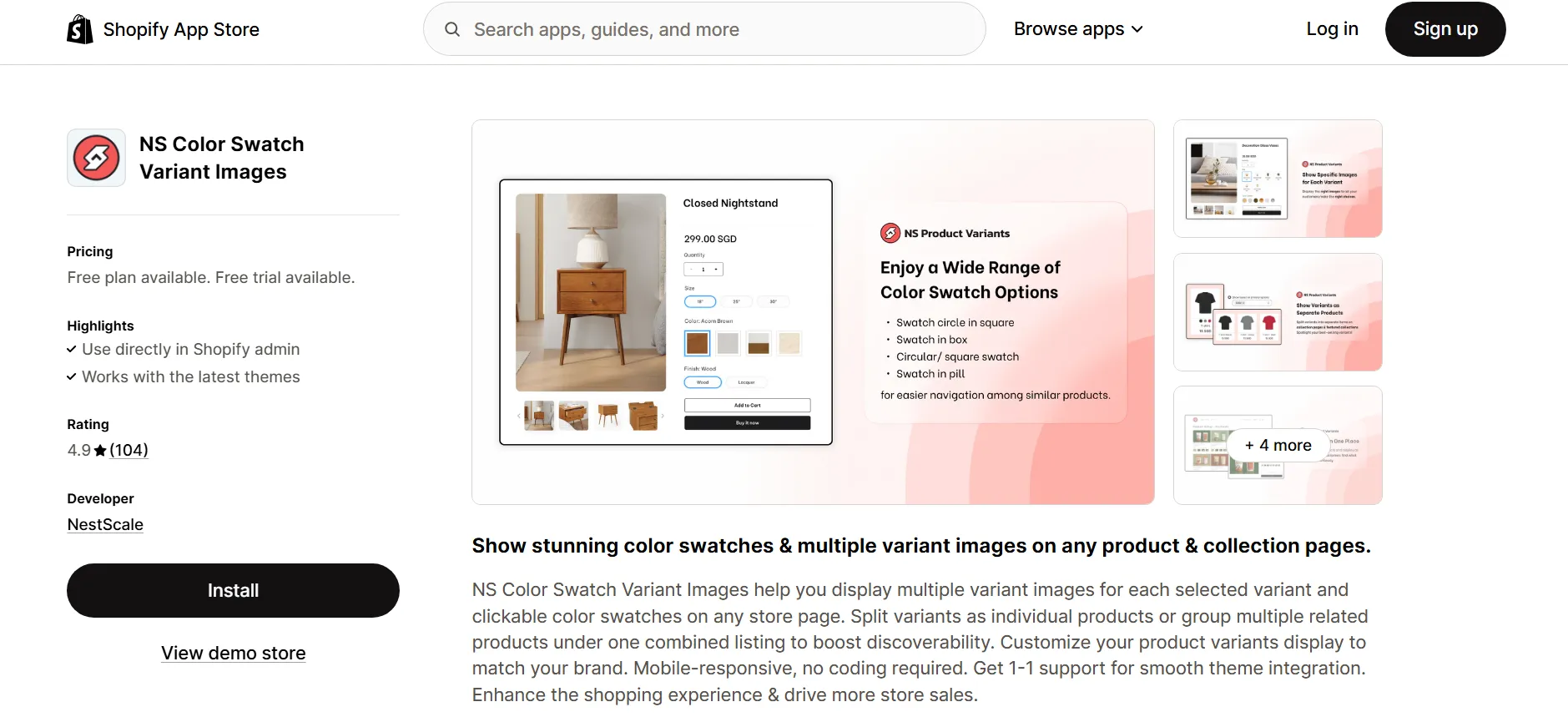
2. Click Install and follow the quick Get Started instructions.
3. Click Embed App to integrate it with your theme.
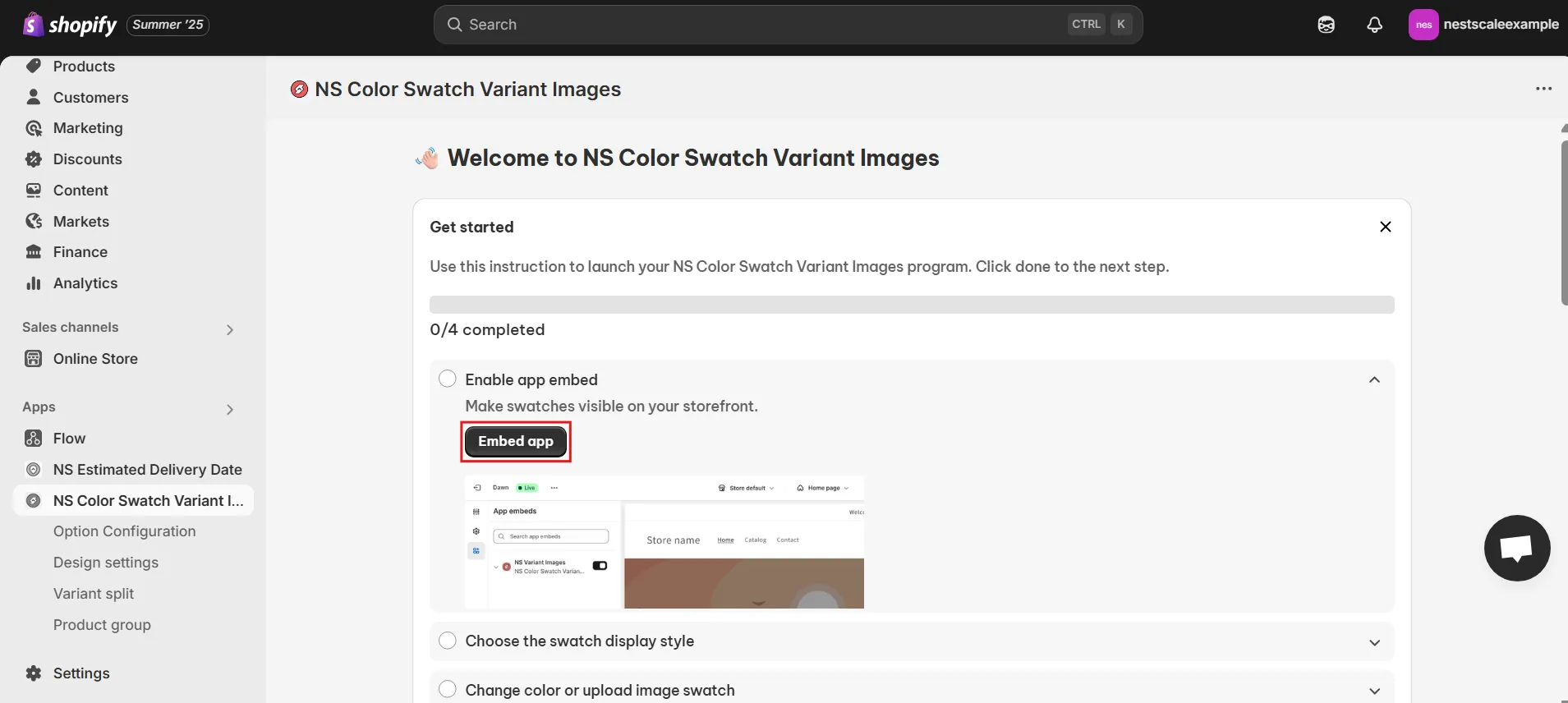
4. You’ll be redirected to the Shopify Theme Editor. Toggle ON the switch next to the app name, then hit Save.
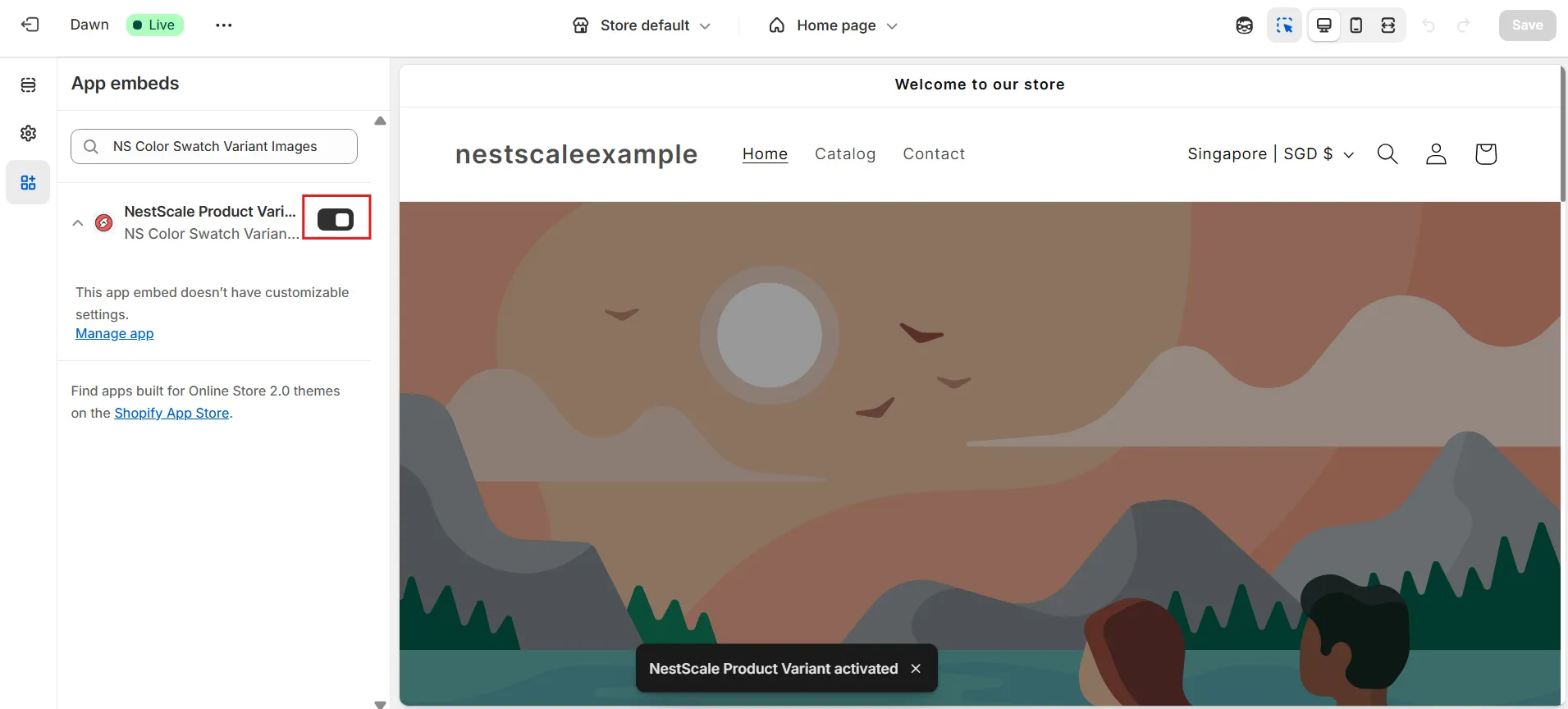
That’s it! The app is now live and ready to help you control which images display for each variant.
Step 2: Assign specific variant images to each variant
This is where the magic happens, setting up so your store shows only the selected variant images.
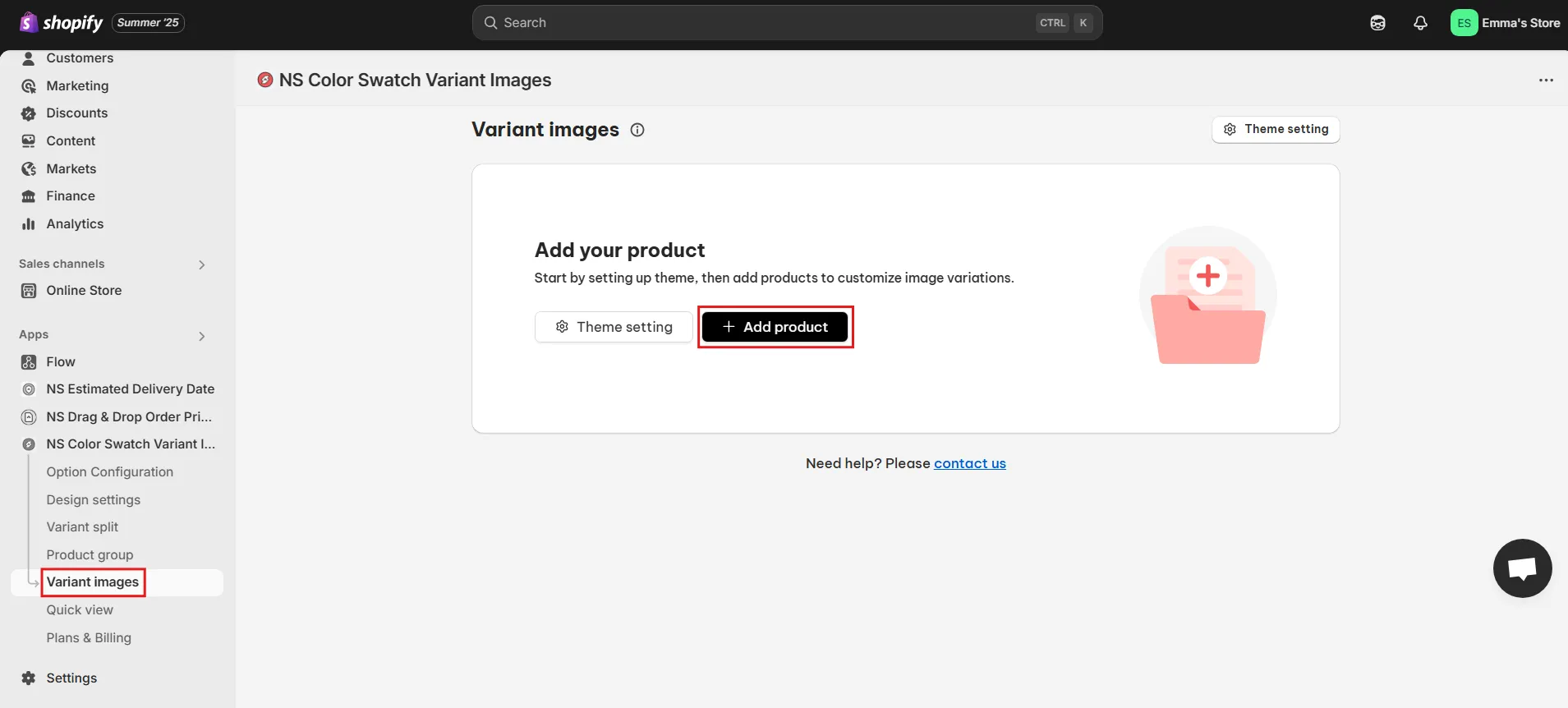
1. In the app dashboard, click the Variant Images tab.
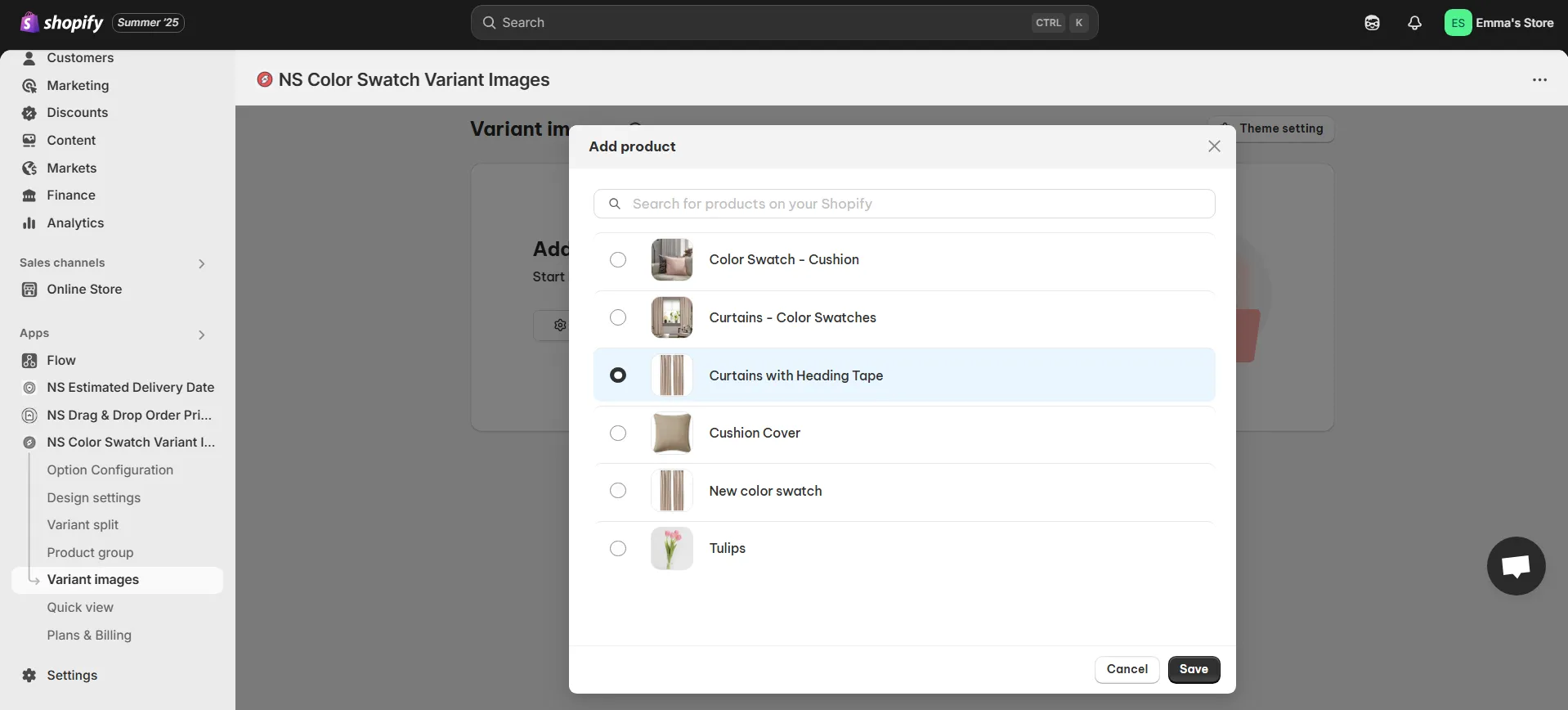
2. Hit Add Product and select the product you want to edit and Save.
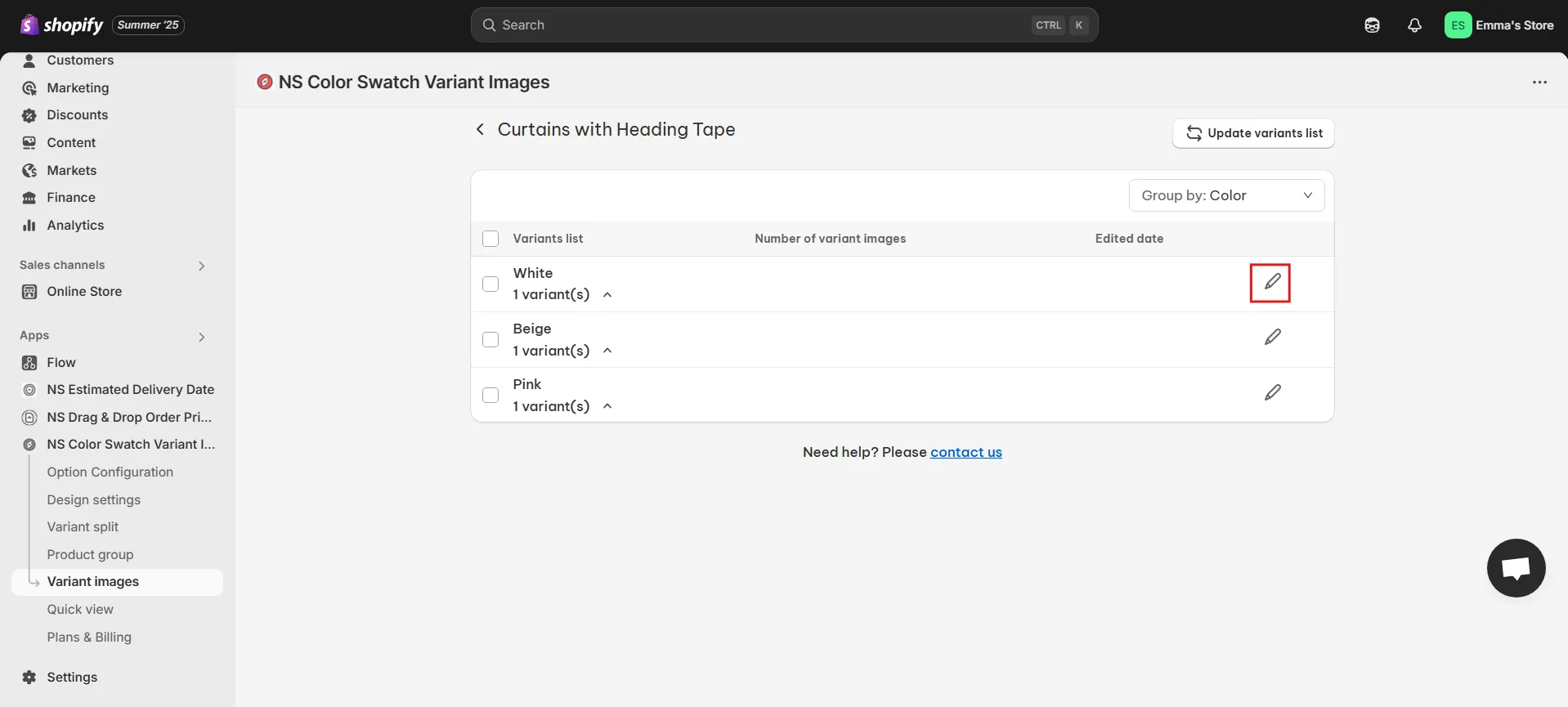
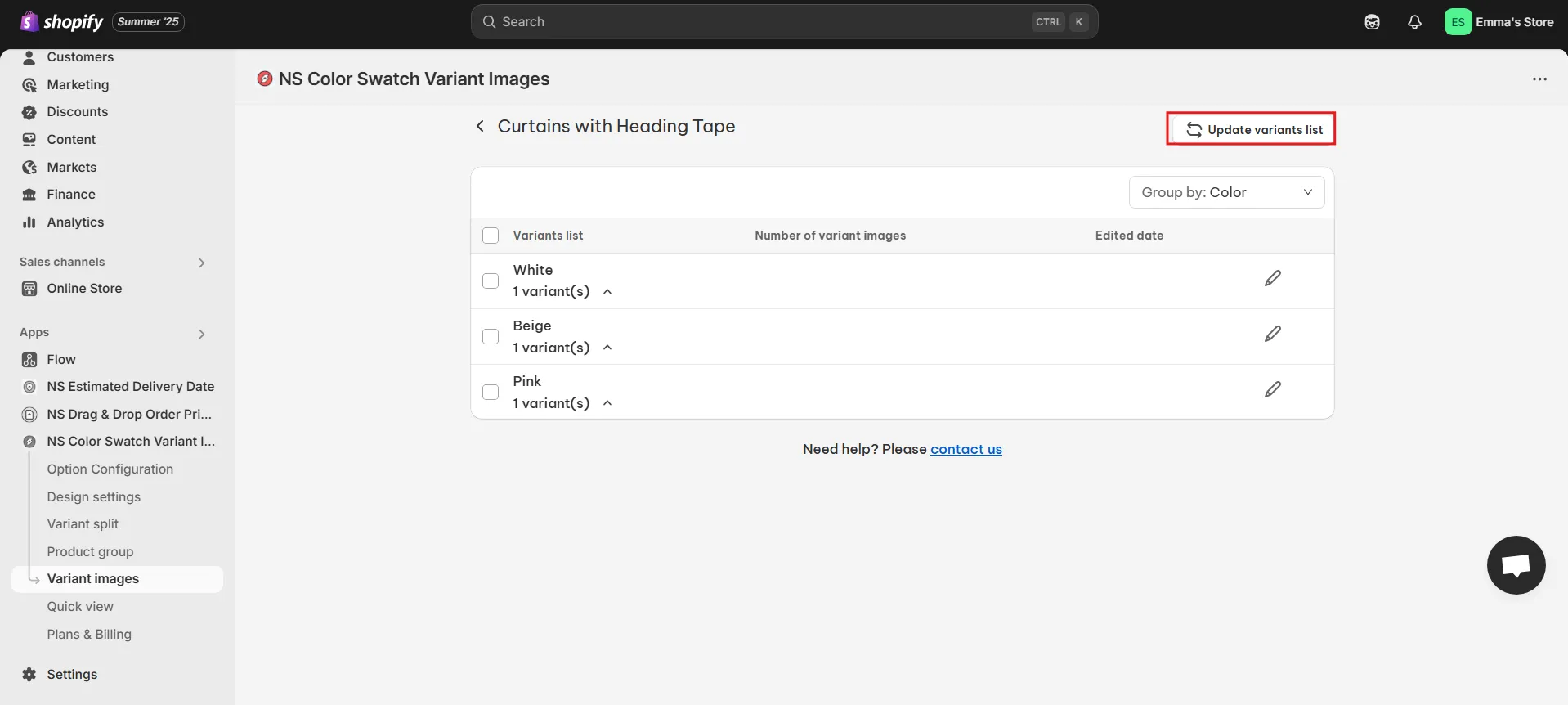
3. Once added, you’ll see the full list of its variants.
4. Next to each variant, click the pencil icon ✏️ to assign images.
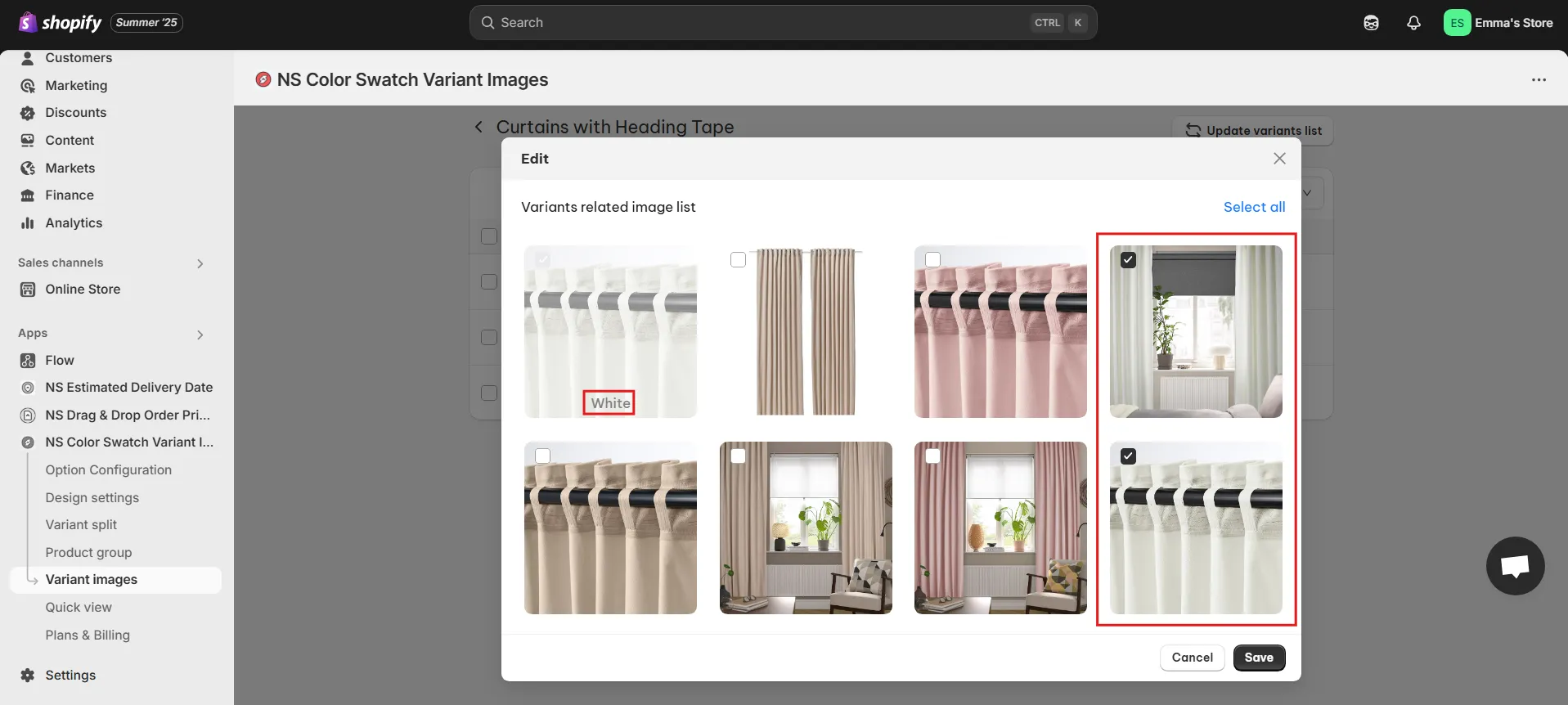
5. Click Save when you’re done.
💡 Pro tip: If you add new variants later, just click Update Variant List. The app will automatically resync so you can assign images to the new options.
Repeat this process for any other products where you want a cleaner, more organized image gallery.
Step 3: Preview on Your Storefront
Now refresh your product page in the Shopify Dawn theme.
- When a shopper selects white, they’ll only see the white product photos.
- If they switch to pink, only the pink images appear.
This makes your product page more user-friendly, less cluttered, and way more professional.
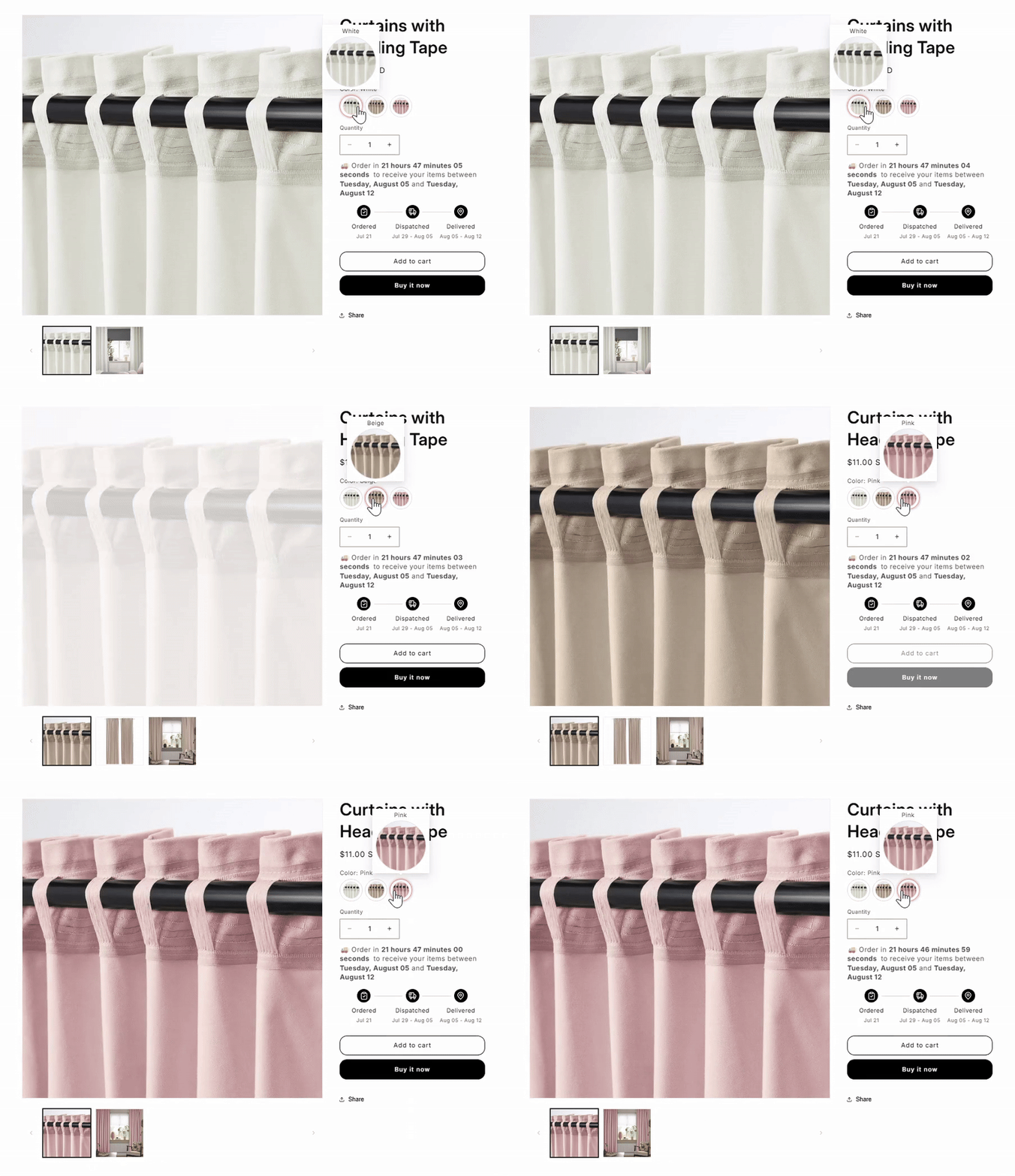
Video tutorial by NestScale – Show Only Relevant Variant Images on Shopify in 3 Minutes
Prefer to watch instead of read? Check out our 3-minute YouTube tutorial where Oliver walks you through everything step-by-step.
FAQs
1. Are there apps that can show only selected variant images in Shopify Dawn Theme without coding?
Yes, several apps can filter product images so only those related to the selected variant are shown. These tools remove the need for manual coding and reduce the risk of breaking your theme during updates.
With NS Color Swatch Variant Images, which lets you automatically display the correct variant images on both product and collection pages, with easy setup and customization options.
2. Does Dawn automatically hide other variant images?
No, the Dawn theme does not hide unrelated variant images by default, it will still display all product images unless customized.
To achieve a clean, variant-specific gallery without editing theme code, you can use NS Color Swatch Variant Images, which not only removes unrelated variant images from the product page but also:
- Be compatible with all Shopify themes
- Lets you create fully customizable color or image swatches
- Displays variant-specific images on both Product and Collection pages