








 Shopify Development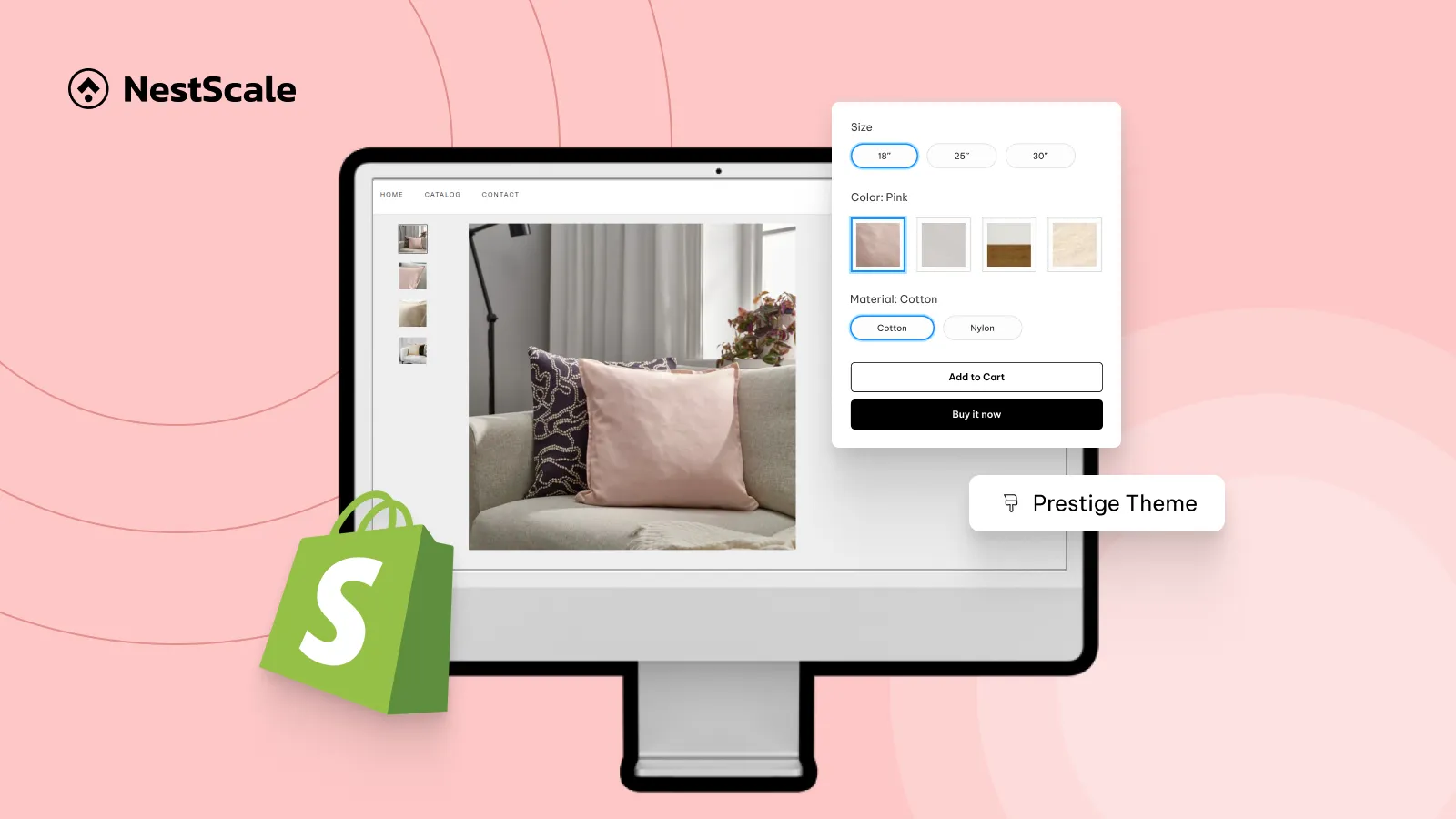
As you’re using the Prestige theme – a paid theme on Shopify, it already offers built-in color swatches so you can enable them right in the Shopify admin without complex coding effort. In this guide, we’re going to show you:
- How to add color swatches for Shopify Prestige theme? (2 methods)
- Using built-in color swatches (no customization)
- Using NS Color Swatch Variant Images (fully customizable)
- How to customize color swatches to enhance product display on your store?
Method 1: Use built-in color swatches in Prestige theme
The Prestige theme includes a built-in color swatch feature. Follow these steps to enable it for your product variants.
Step 1: Set up a product
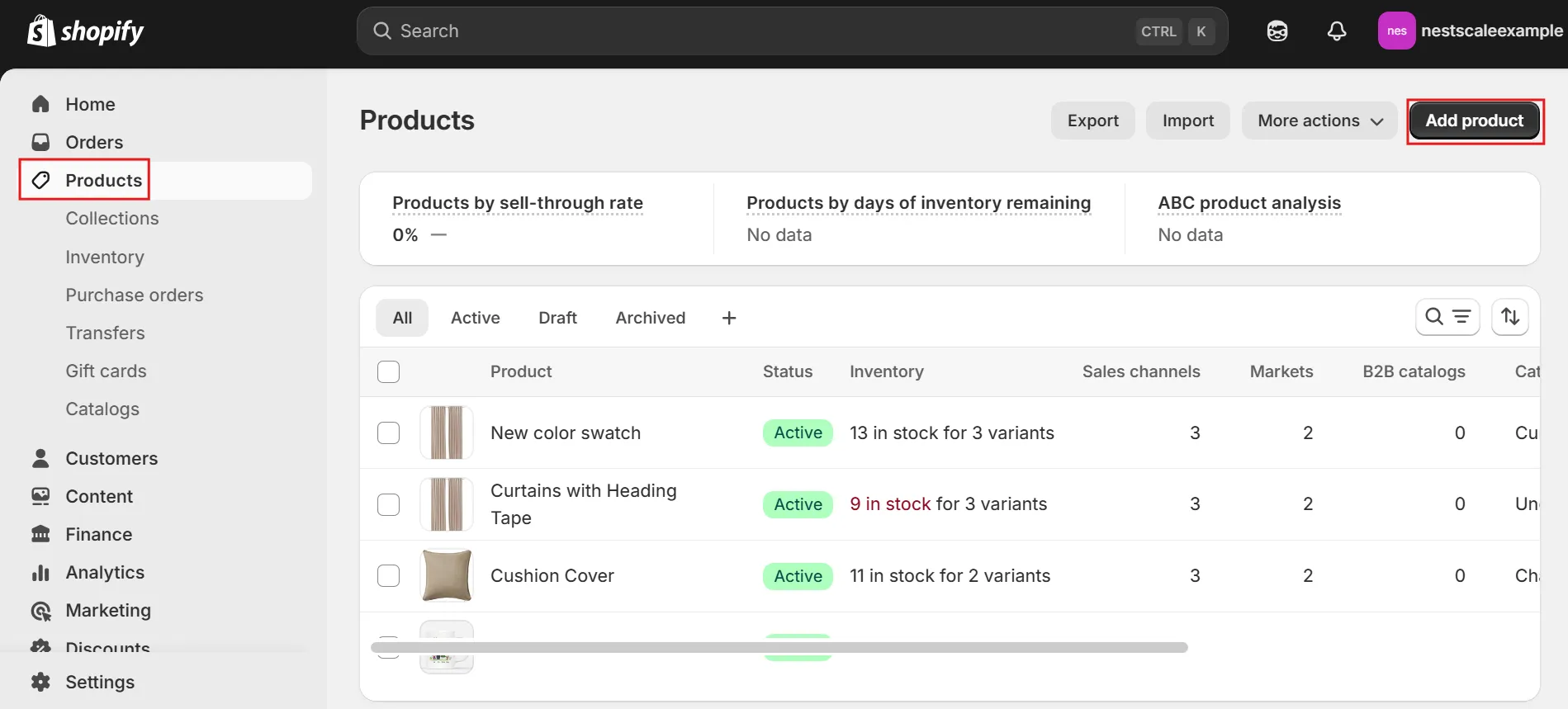
1. In Shopify Admin, navigate to Products.
2. Click Add Product.
3. Name your product and upload product images.
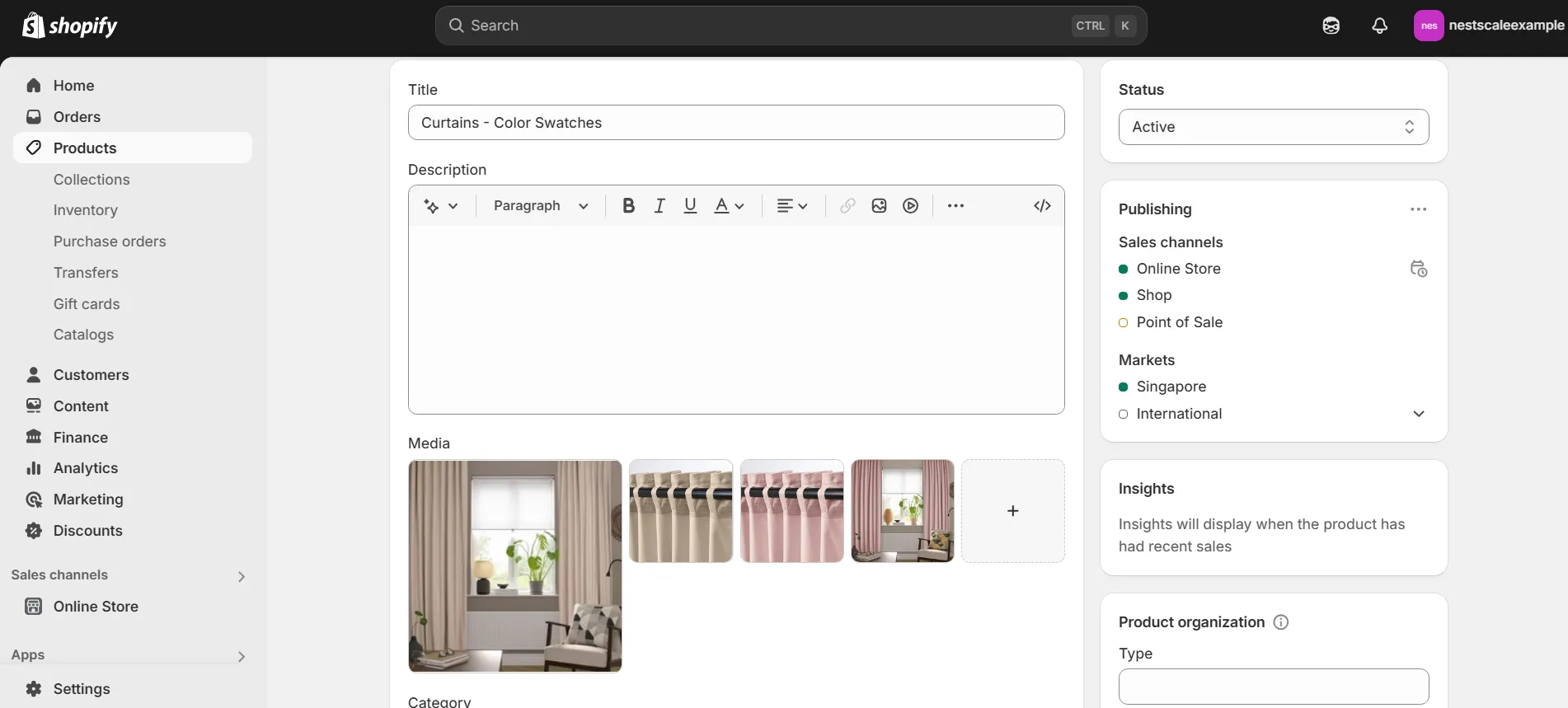
4. Click Save.
Step 2: Enable color swatches in the Prestige theme
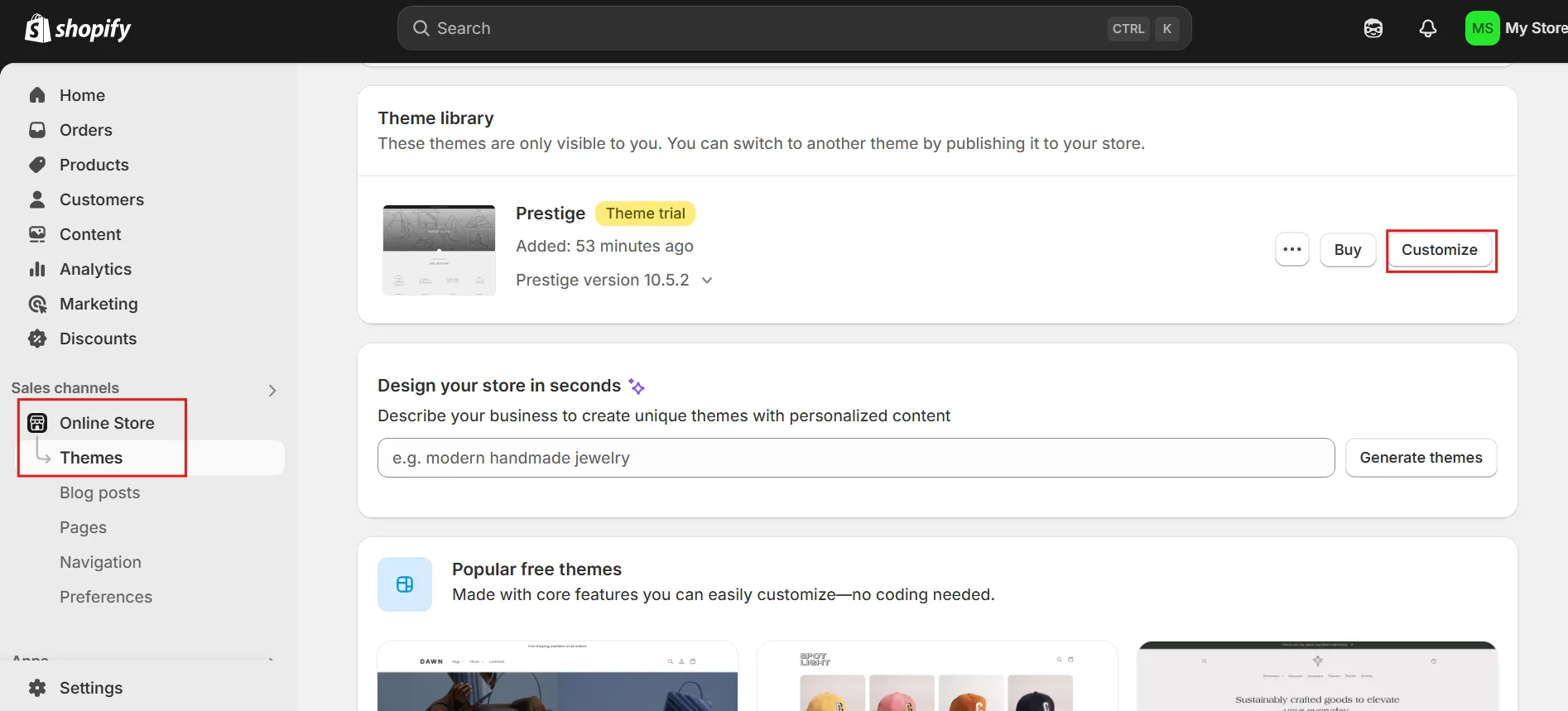
1. Go to Online Store > Themes.
2. Click Customize on the Prestige theme.
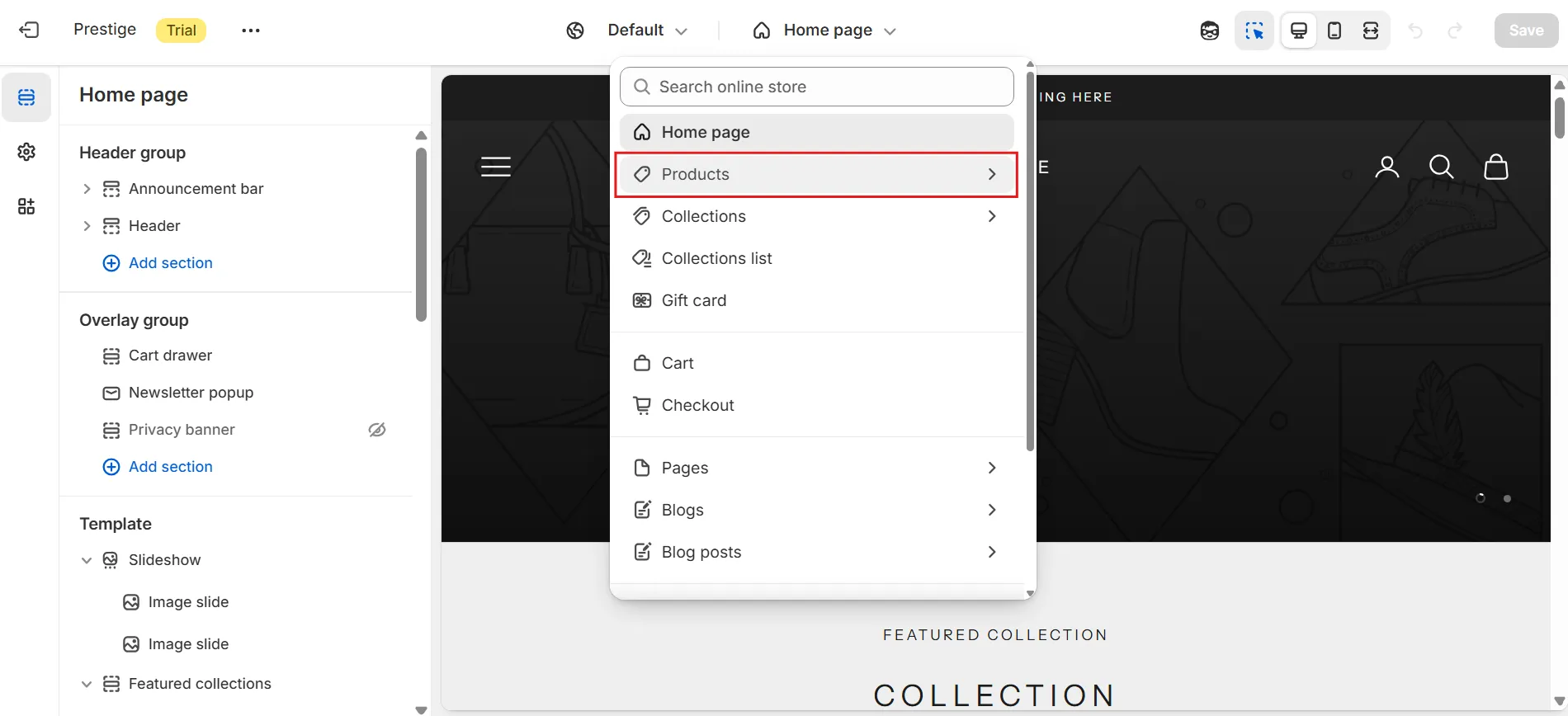
3. In the editor, navigate to Product Page > Default Product.
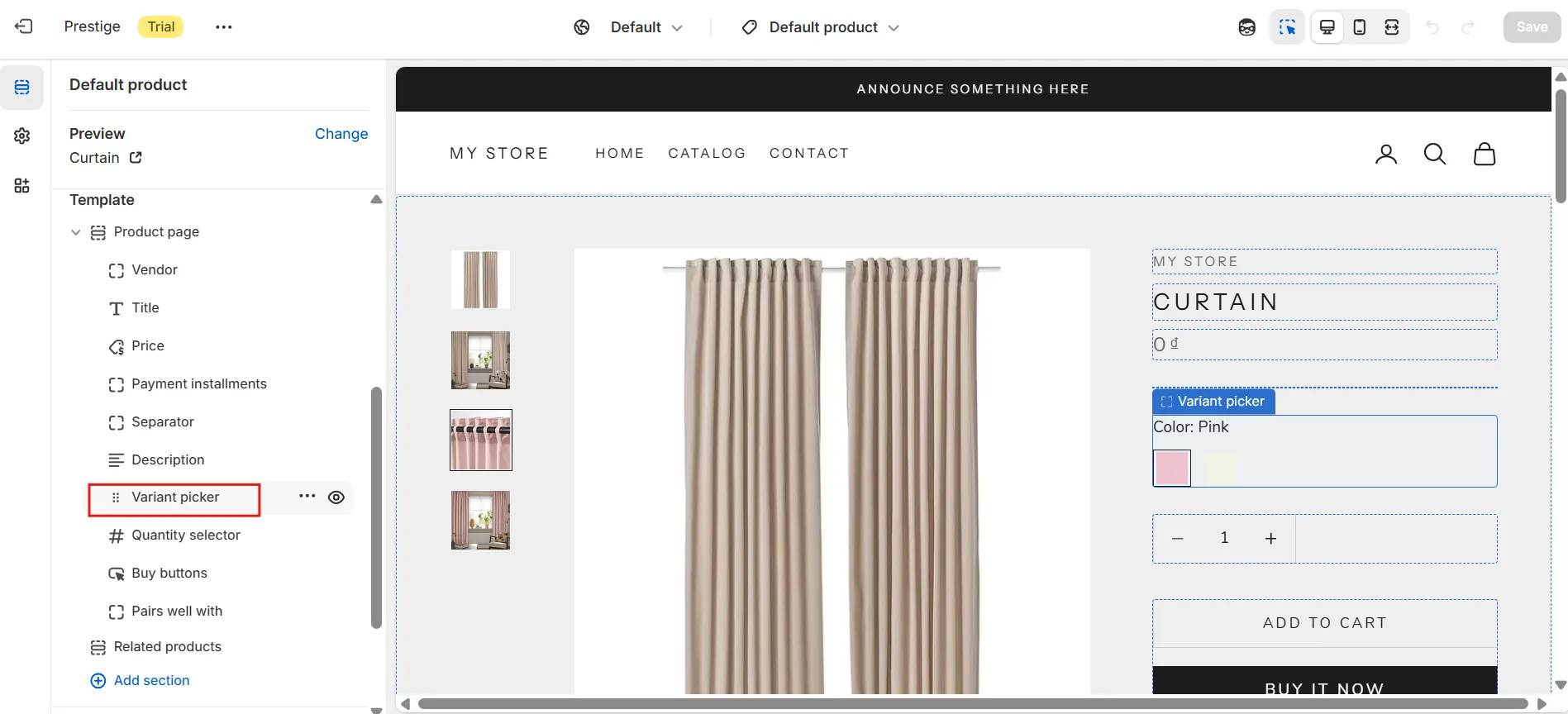
4. Find Variant Picker in the Template section.
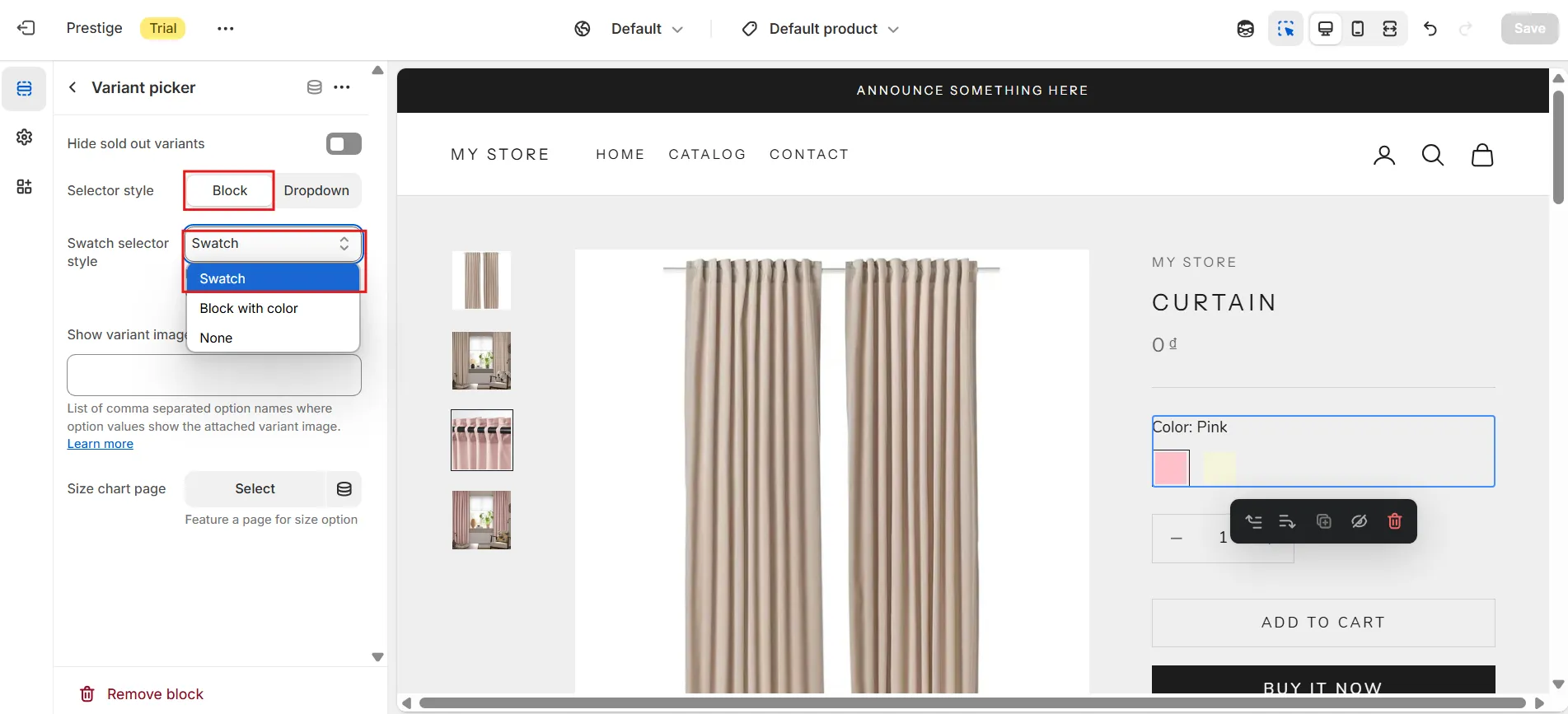
5. Under Selector Style, choose Block.
6. In the dropdown menu, select Swatch.
7. Click Save.
💡The built-in Prestige theme color swatches are basic and do not allow customization. If you want to customize the design of your swatches, you should refer to Method 2 for advanced customization options using the NS Color Swatch Variant Images app.
Method 2: Use NS Color Swatch Variant Images app
Step 1: Install NS Color Swatch Variant Images
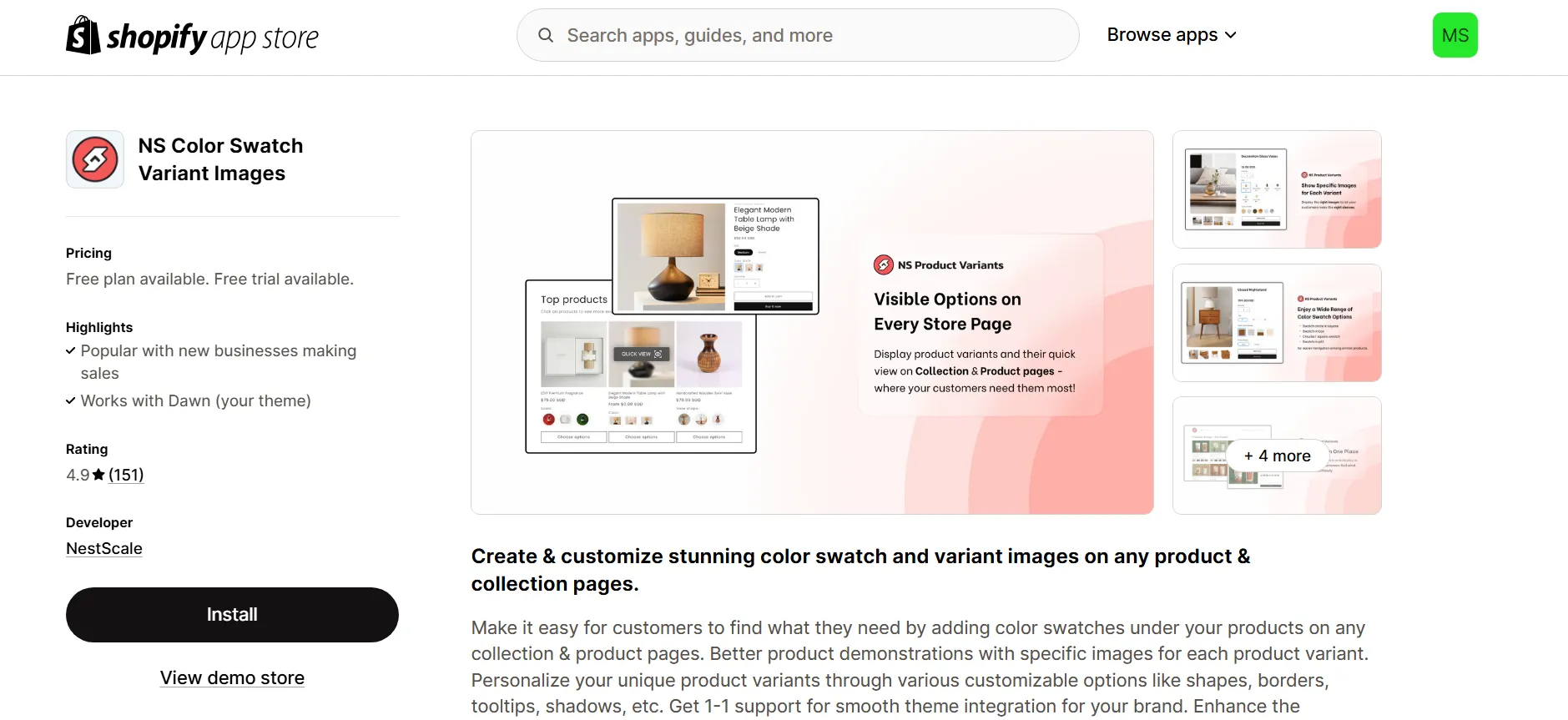
1. Open the Shopify App Store and search for NS Color Swatch Variant Images.
2. Install the app and click Open.
Step 2: Set up the app
1. Follow the onboarding process in the app.
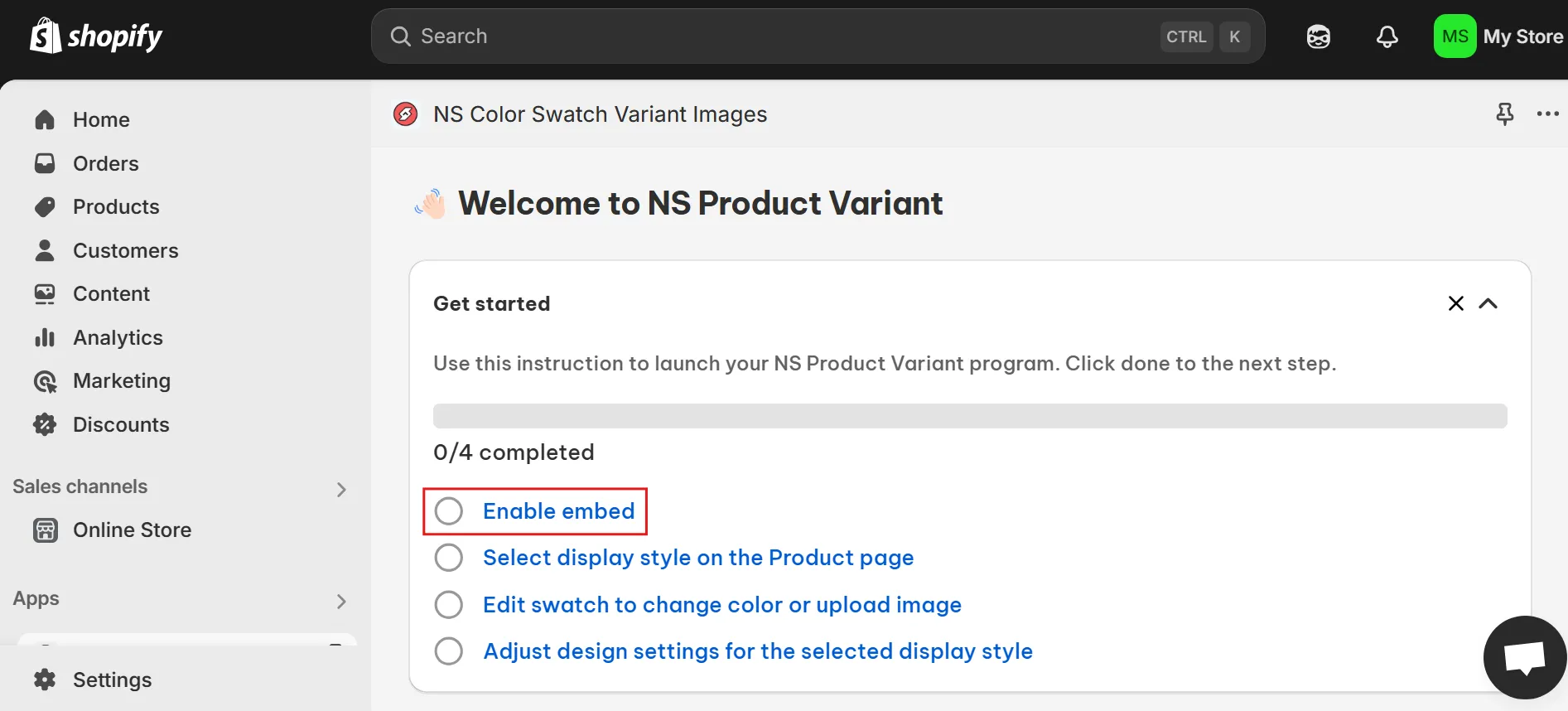
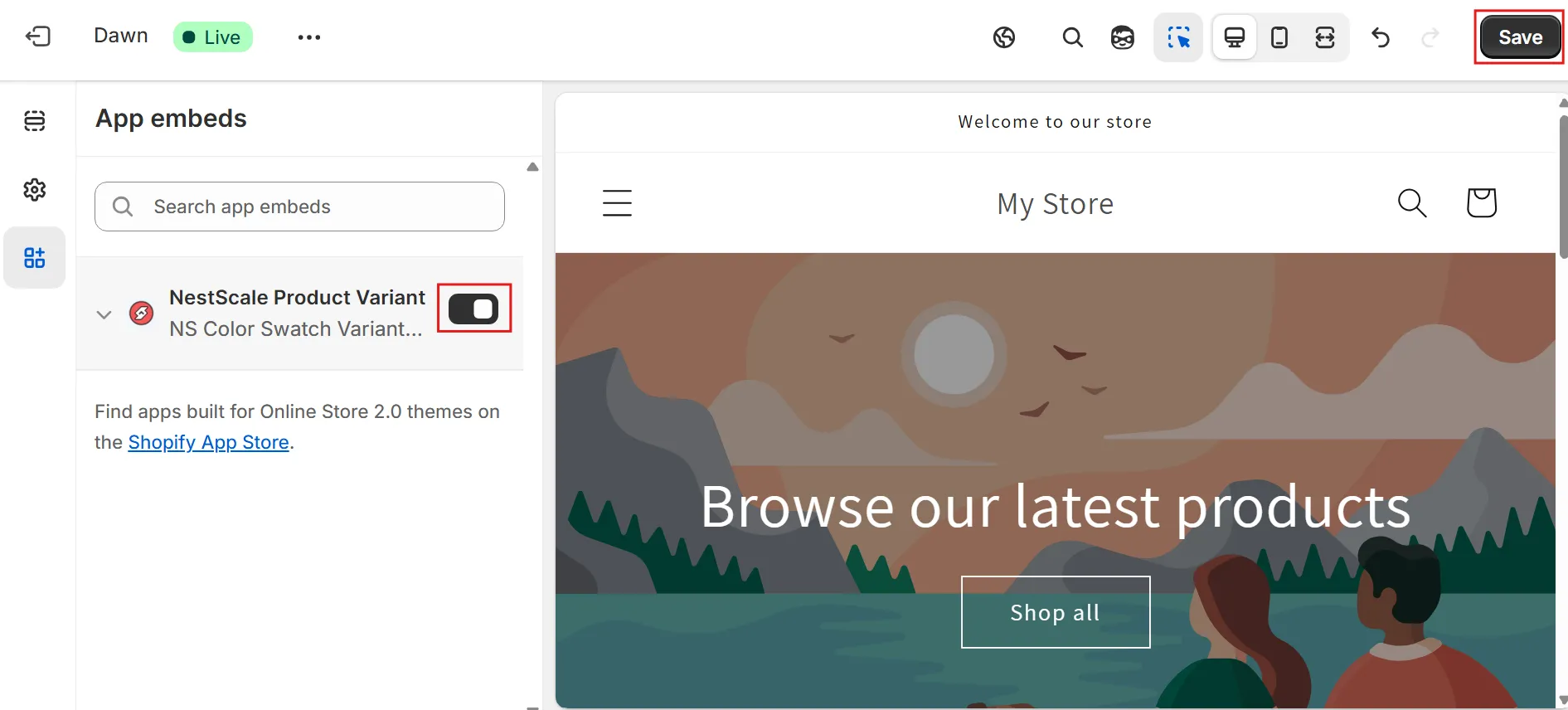
2. Activate Embed by toggling the switch and click Save.
Step 4: Configure product options
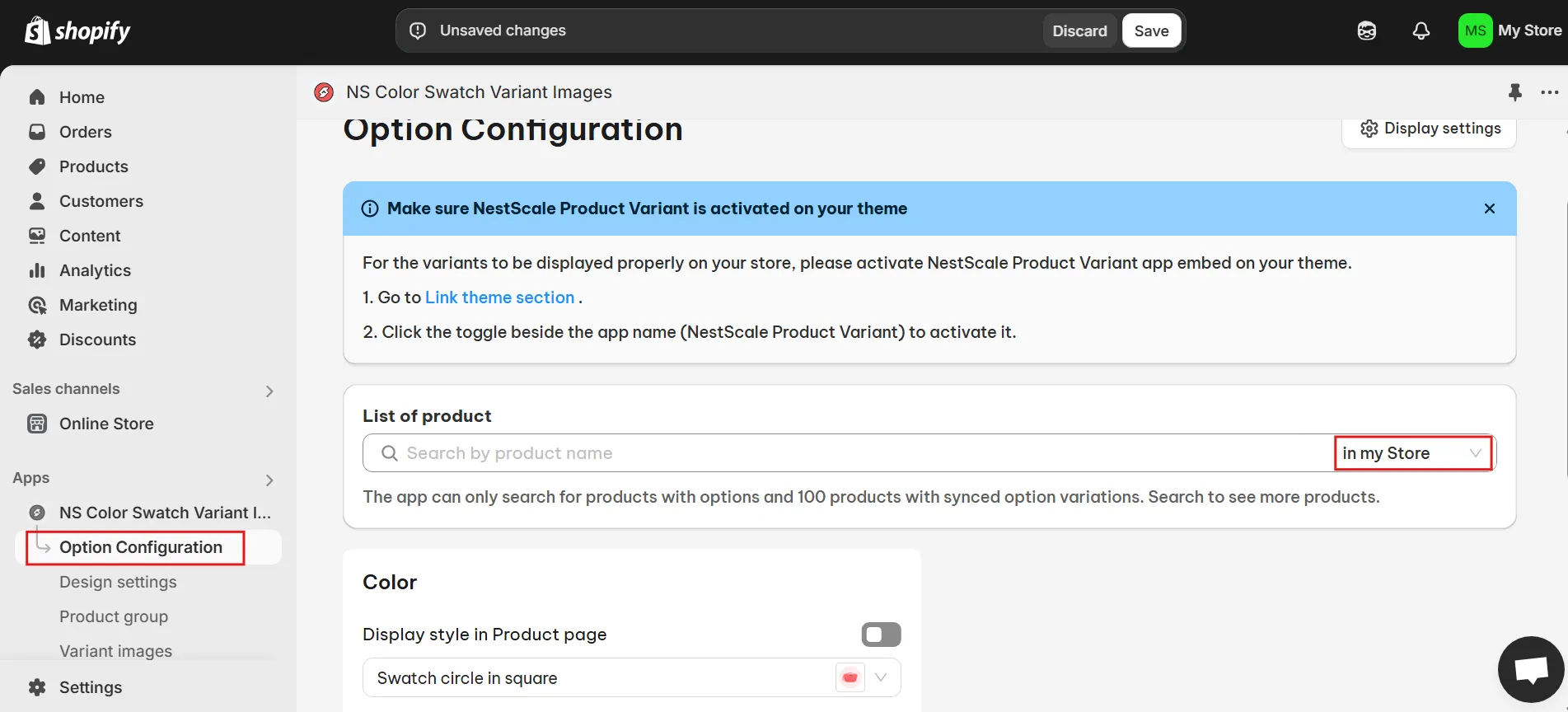
1. Navigate to Option Configuration section.
2. In the dropdown menu next to the search bar, select In my store.
3. Enter the product name to specify which options you want to display color swatches.
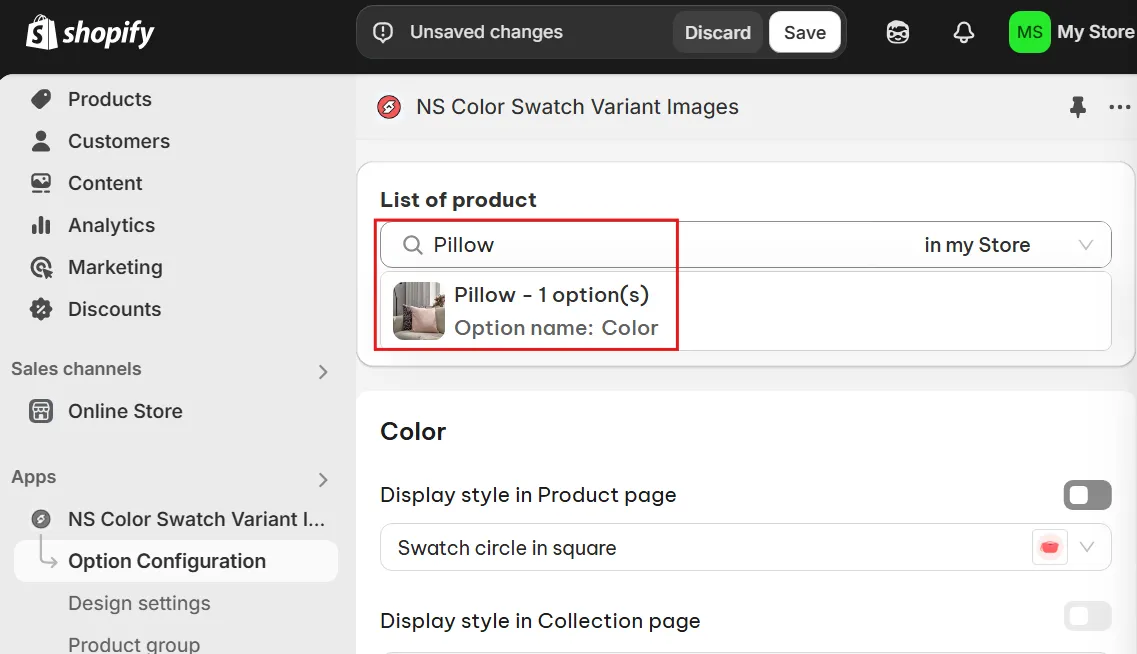
4. Choose a swatch style from the dropdown list.
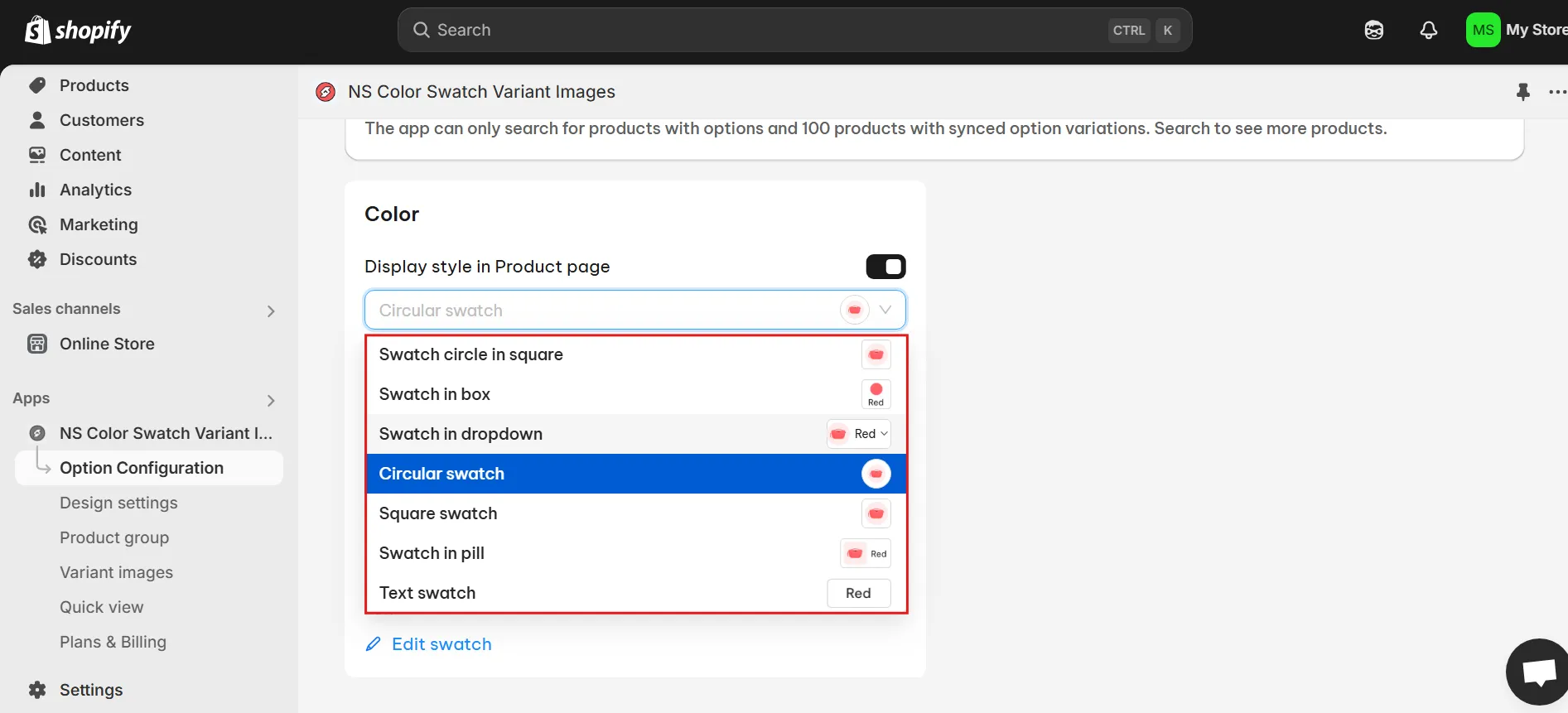
5. Click Edit swatch.
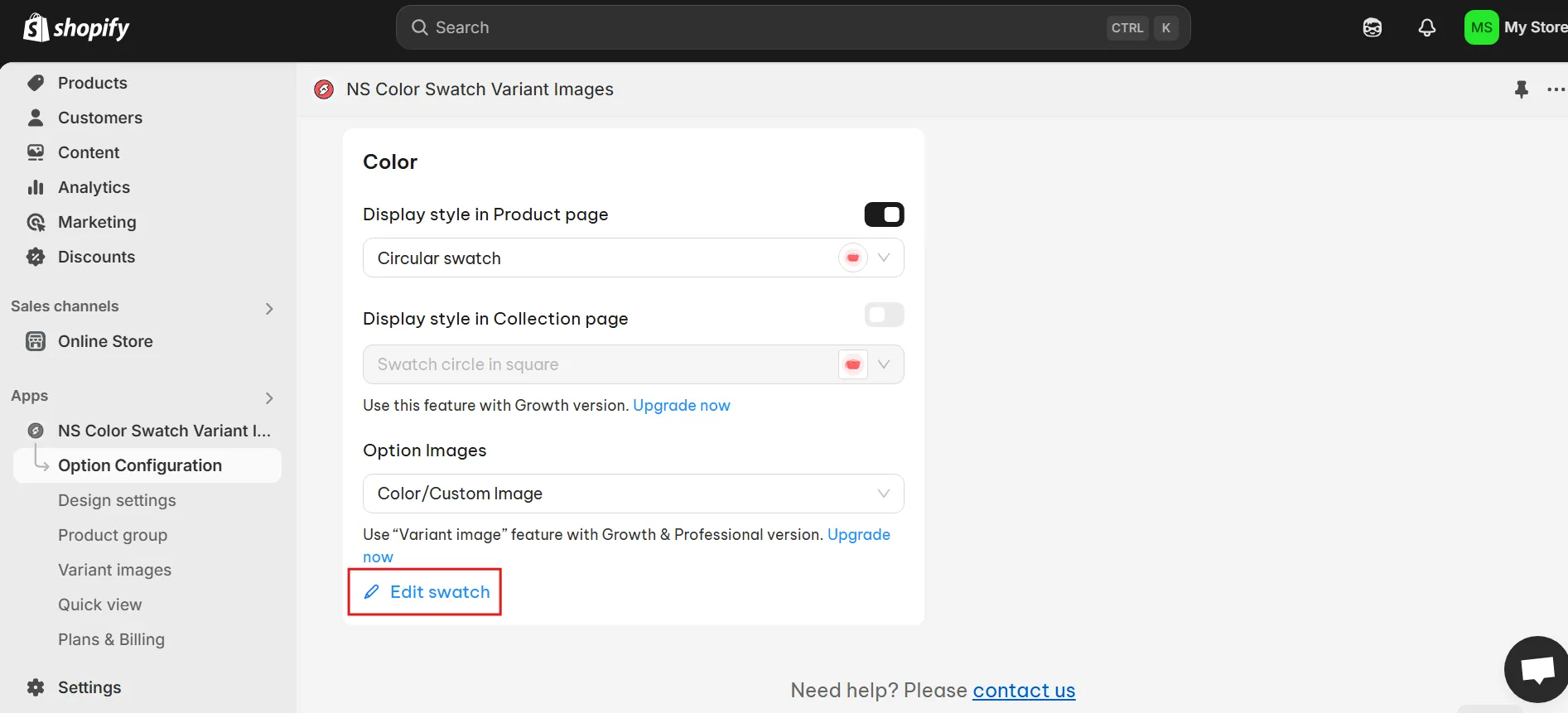
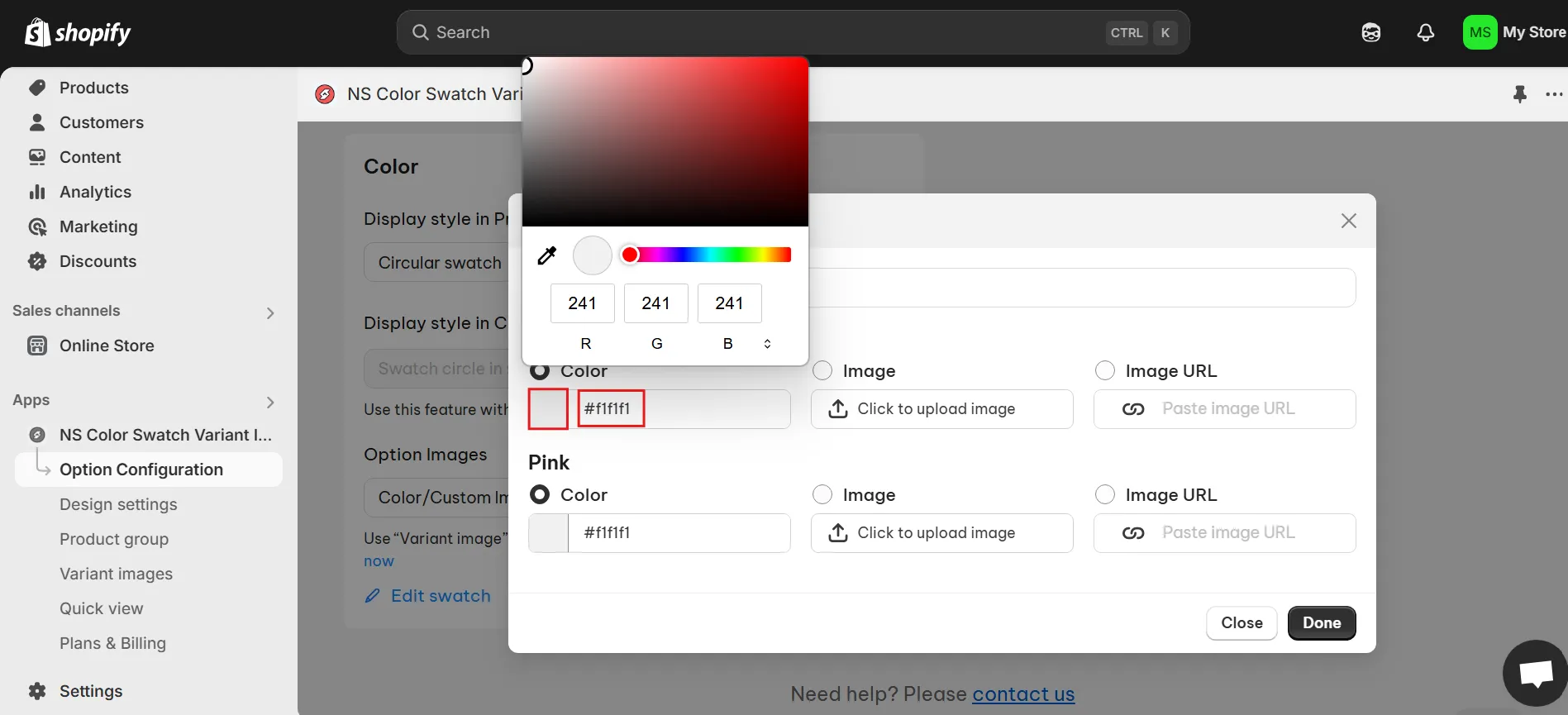
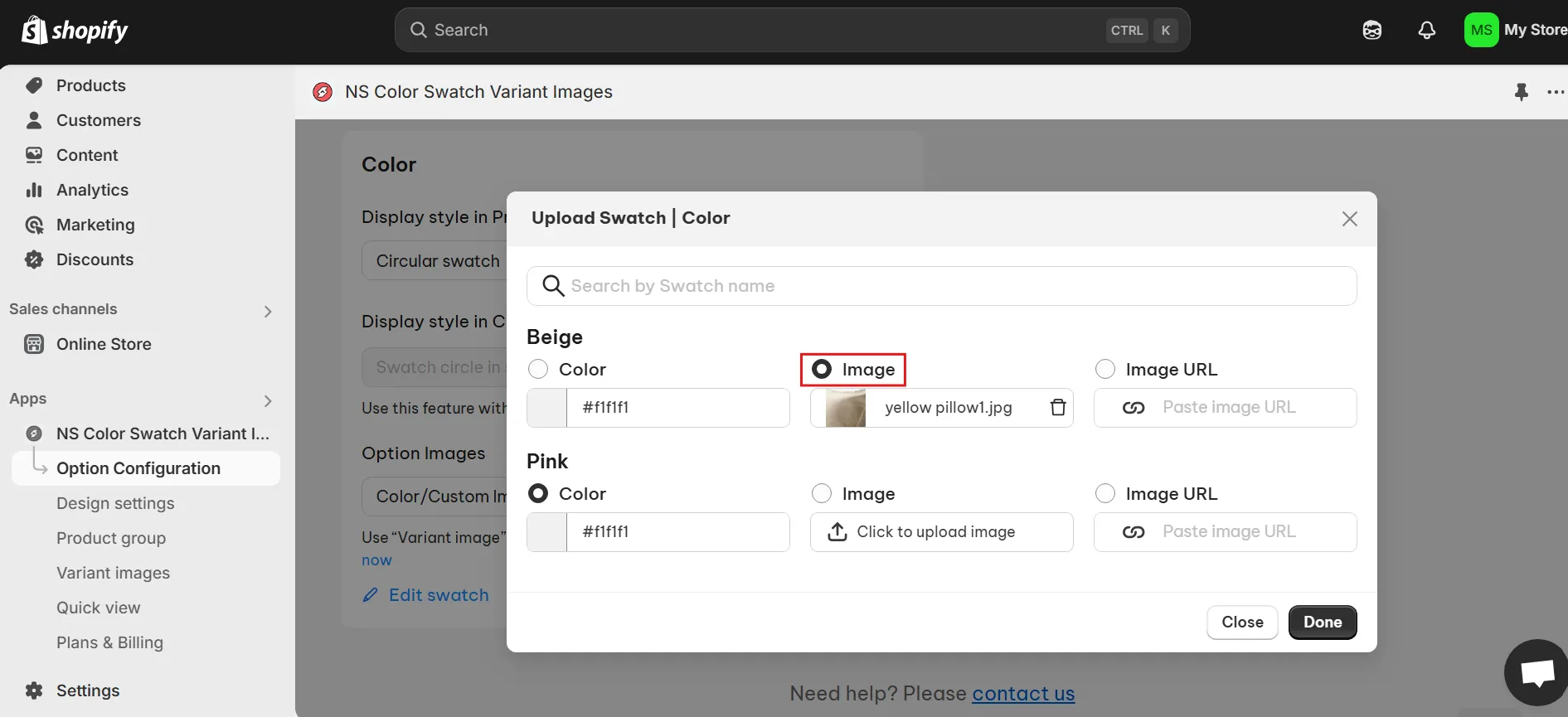
There are 2 swatch type options
- Solid color swatch: Select a color using the color picker or enter a HEX color code.
- Image Swatch: Upload a custom image from your computer.
6. Click Done, then toggle the button to enable color swatches on the product page.
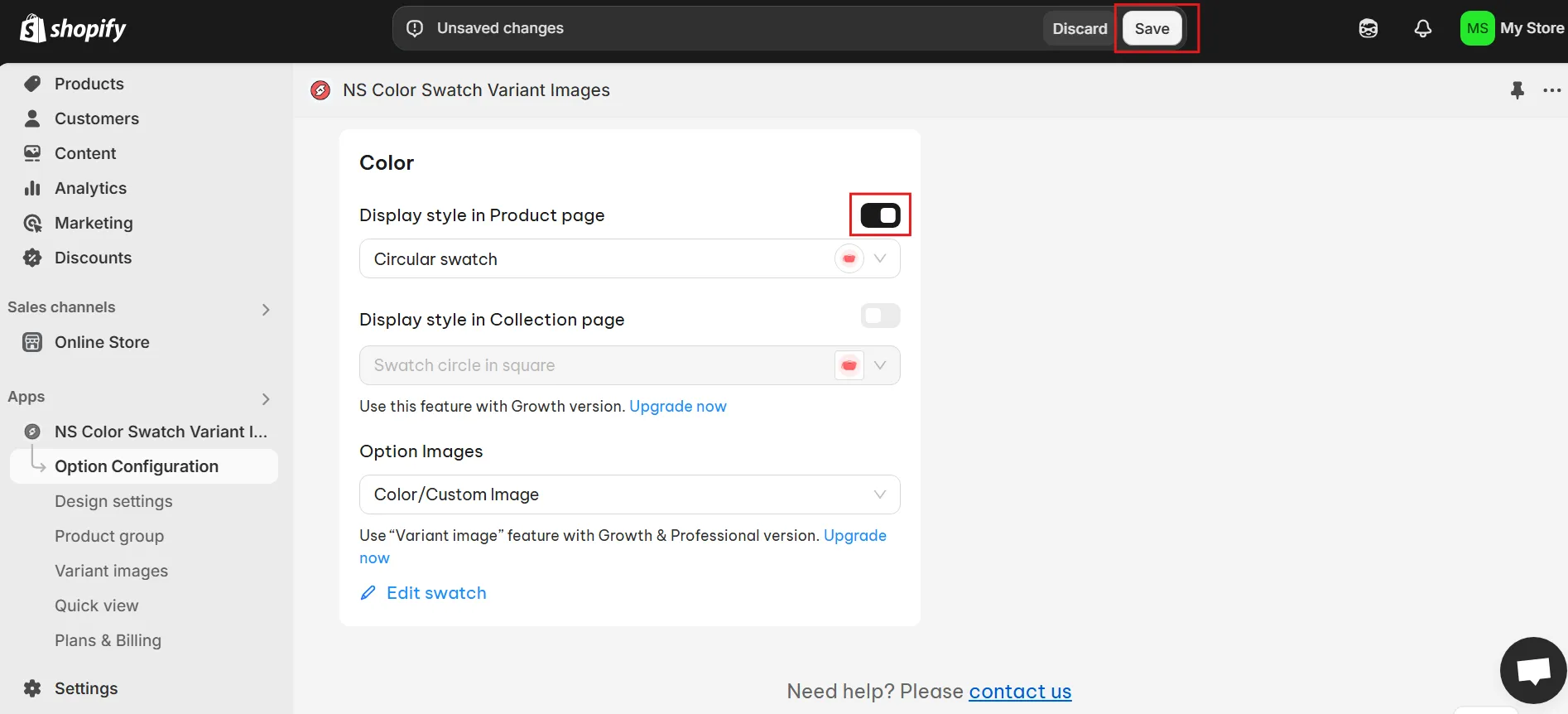
7. Click Save to confirm changes.
Step 5: Customize swatch design
1. Navigate to Design Settings from the menu.
2. Click Customize to modify the appearance of your swatches.
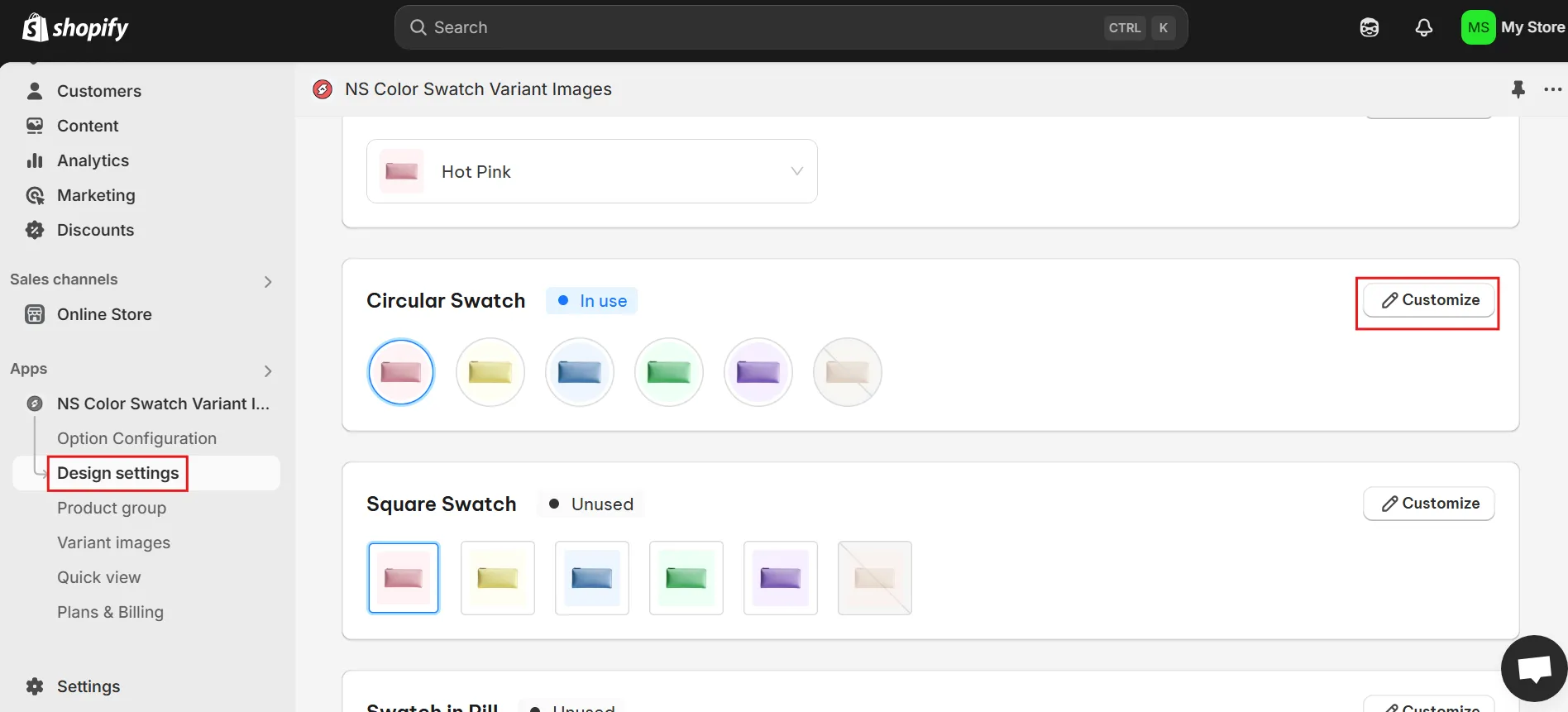
Adjustable settings include:
- Swatch size
- Background color
- Border color
- Hover effect
- Tooltip text
- Variant description
💡 Tip: Use the Preview feature to see real-time changes before saving.
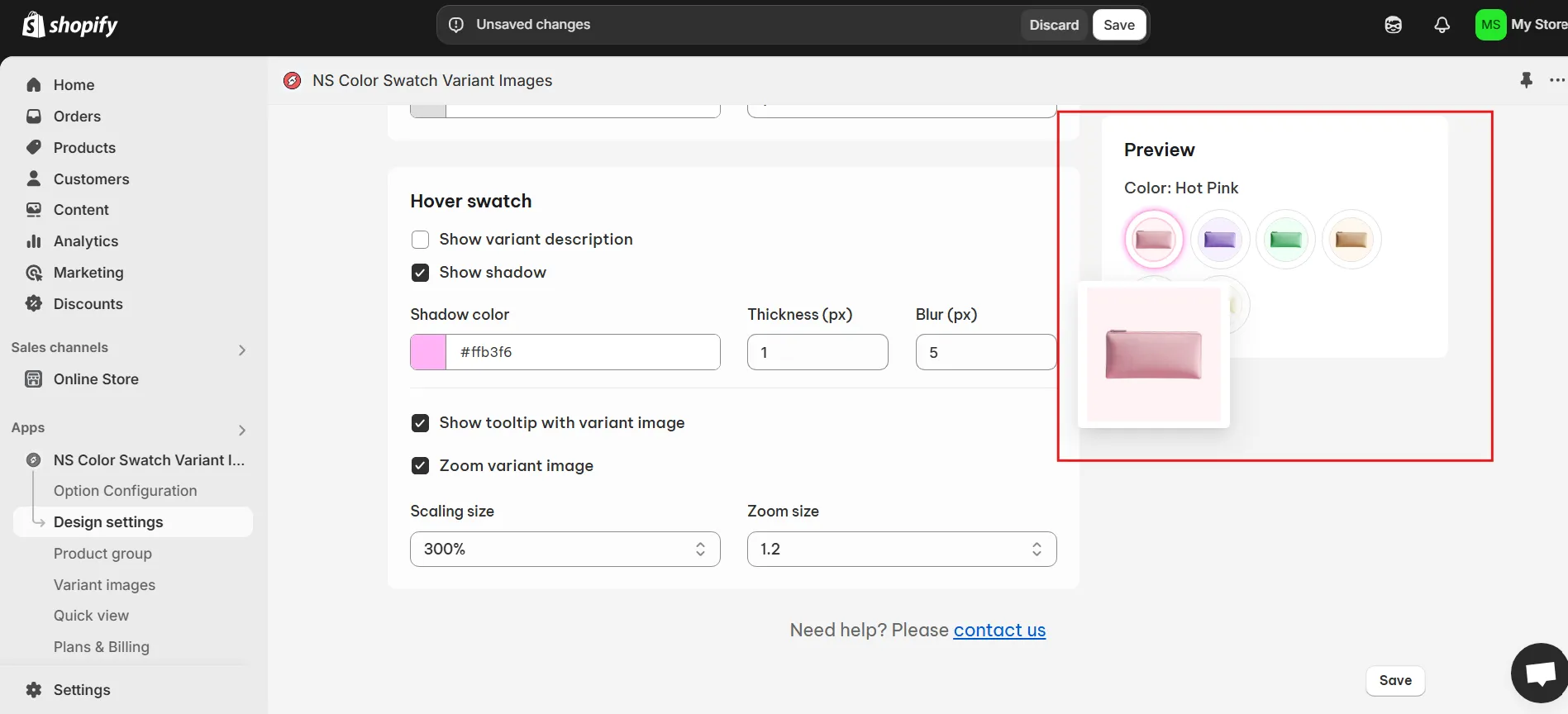
3. Click Save, and you’re all set! Visit your online store to view the updated color swatches.
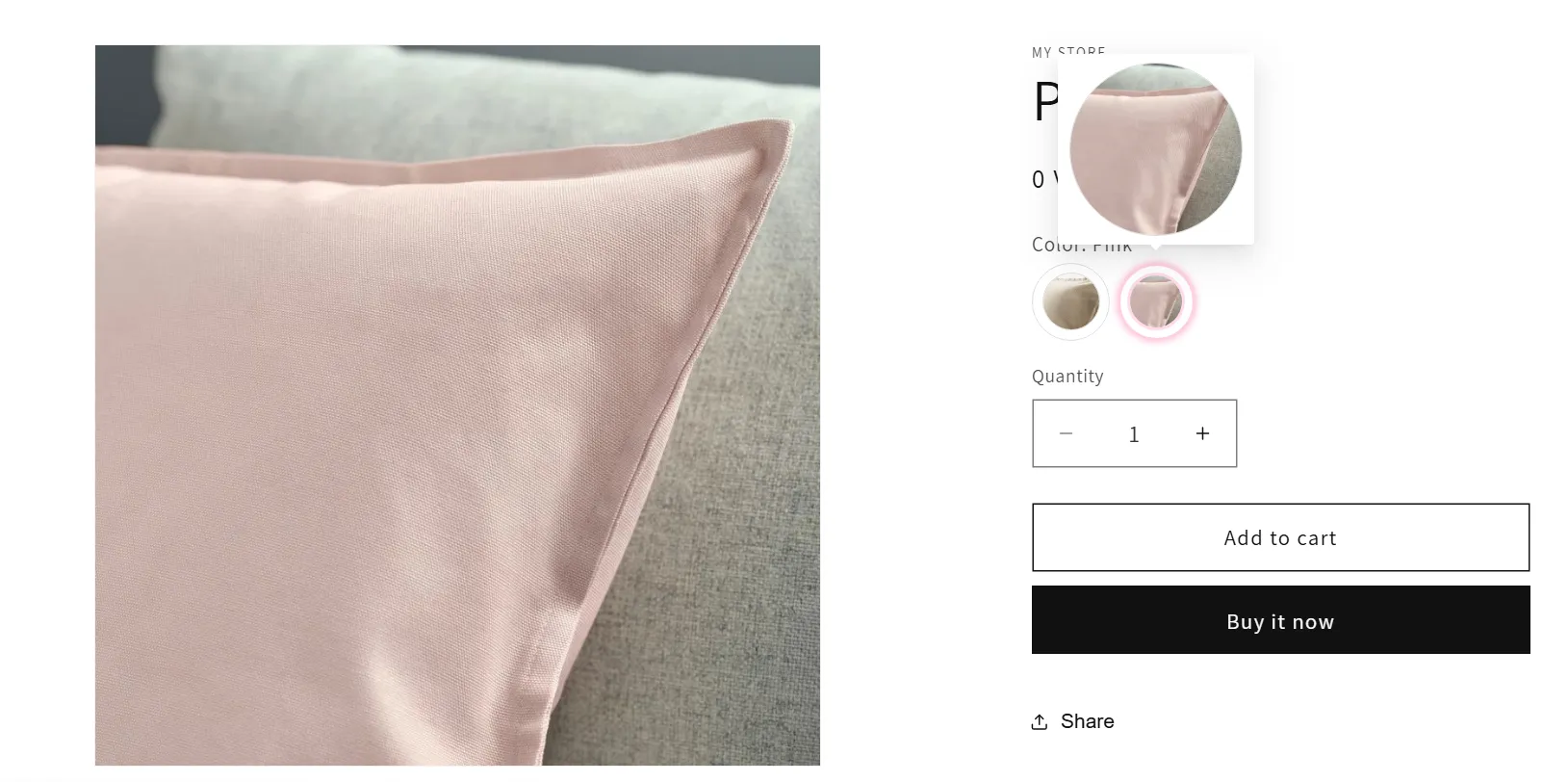
✨ NS Color Swatch Variant Images also comes with essential features to enhance your store, including:
- Color swatches display on home and collection pages
- Automatic variant image swatches for seamless updates
- Multiple variant images, allowing you to assign specific images to each variant
- Grouping separate products as variants for better organization
- Quick view of product details for an improved shopping experience
To access these advanced features, you can upgrade to the Growth or Pro plan directly within the app settings.
👉 Related:
Shopify Conversion Rate Optimization: Best Strategies
How to Show Variants as Separate Products in Shopify? (2025 Tutorials)
FAQs
If you’re using Prestige theme version 9 or higher, you can use the built-in color swatches following our Method 1 instructions. But if your current version doesn’t support color swatches, you can try method 2 using NS Color Swatch Variant Images.
1. Go to Shopify Admin > Customize your Prestige theme.
2. Go to Theme settings > Color swatch.
3. Toggle on the Round color swatches button.
In the Prestige theme, your color swatches will automatically show up on the collection pages. If it doesn’t work with your store, you can try this feature in NS Color Swatch Variant Images app to display your swatches on collection pages, with an even more polished look.